
So you just upgraded to a new iPad, and you want to move all of your apps, pictures, settings, and data from an old iPad to the new iPad, right? Doing this is easy, you can go the post-PC route with iCloud (recommended), or the old fashioned way with iTunes, we’ll show you both.
Transfer Data from Old to New iPad with iCloud
Using iCloud is by far the easiest method, but you’ll obviously need to have iCloud set up and configured for this to work. This is the post-PC method, you won’t need to use a computer at all.
From the Old iPad
- Launch “Settings” and tap on iCloud, then tap on “Storage & Backup”
- Tap on “Back Up Now” to initiate a manual iCloud back up
- Let the backup finish and then leave the old iPad alone
From the New iPad
- At the “Set Up iPad” screen, choose “Restore from iCloud Backup” and tap “Next”
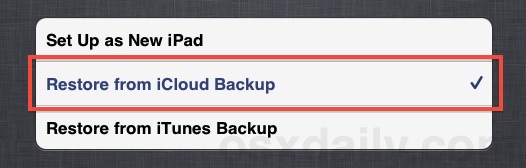
- Login to your iCloud account and choose the most recent backup from the old iPad you just made
- Tap on “Restore” to transfer the data from the old iPad backup to the new iPad
How long the transfer takes depends on how much stuff you keep on the iPad and how fast your internet connection is. Just let the process complete and don’t interrupt it or lose the wifi connection.
Comments
Post a Comment